Use this function to skip all the parts from a feeder. This allows production to be completed for panels when parts are no longer available for the parts that have run out. It is important to note the following points about this function. When parts are skipped, the panel is completed without placing the skipped… Continue reading about 6.2.2 Skipping Feeders (NXT V2.95 And Higher) Of 6.2 Skipping Items On FUJI NXT
Category Archives: SMT Machines MRO
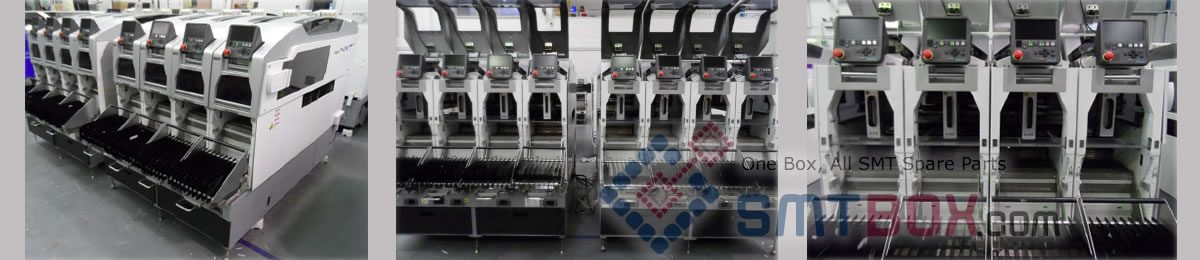
If always a particular board in a panel production lot needs to be skipped for some reason, it is easy to specify a skip for this board for the production lot. There are a few important points that should be addressed when using this function. When the board to be skipped is specified for the… Continue reading about 6.2.1 Skipping Boards (NXT V3.10 And Higher) Of 6.2 Skipping Items On FUJI NXT
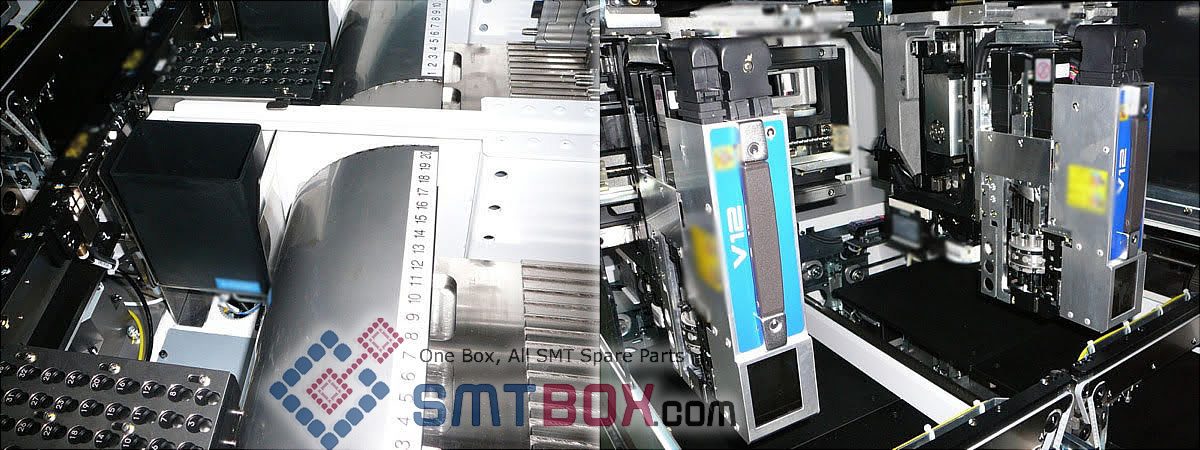
If panels are in a FUJI NXT machine, it is not possible to edit the job and then transmit the edited job back to the foreground in the machine using Fuji Flexa. Instead, MEdit is used to edit jobs that are on machines. The job data that can be edited in MEdit is “safe” to… Continue reading about 6.1 Introduction Of 6. Editing Jobs On The Machine On Fuji NXT
1. Double-click the factory folder from [Transmission Control] to display the target line, and then double-click the line to display the machines in that line. 2. Double-click the machine name to display the lanes for that machine. 3. Double-click the lane for which to delete the job and the current job and next job display… Continue reading about 5.3.2 Deleting a job from a machine Of 5.3 General Procedures For 5. Transmission On Fuji NXT
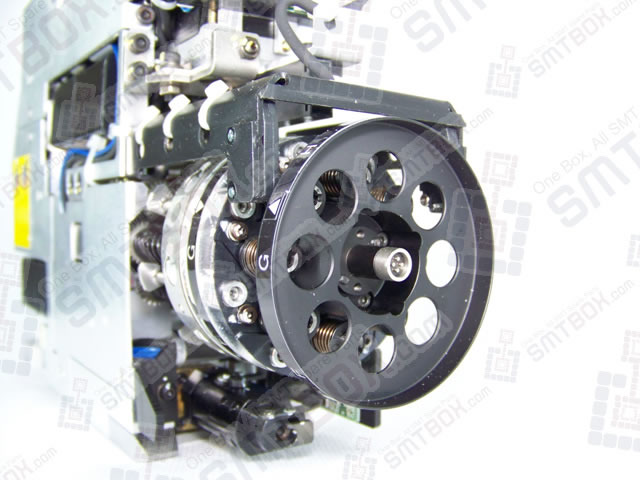
The current job is the job that is used when production is started. The other job for the selected lane is considered to be the next job. Follow the procedures below to change the next job into the current job, however the machine must be at the main page for this operation to be successful…. Continue reading about 5.3.1 Changing The Current Job Of 5.3 General Procedures For 5. Transmission On Fuji NXT

Follow the procedures below to transmit a job from within Director using the [Transmit] command. 1. Select [Transmit] – [Job…] from the [Tools] menu in Director. 2. The [Transmit Job] dialog box displays. Next to [Job:] displays the job to be transmitted. If a job does not display or the job is incorrect, click [Browse]… Continue reading about 5.2.3 Using [Transmit] To Transmit Of 5.2 Transmitting For 5. Transmission on FUJI NXT
Follow the procedures below to transmit a job to the NXT by dragging and dropping the job in the Transmission Control view. 1. With the Transmission Control window displayed, drag the desired job from the global directory in the job pane and drop it on either the NXT line, machine, or lane in the Factory/Line… Continue reading about 5.2.2 Dragging And Dropping Jobs To Transmit Of 5.2 Transmitting For 5. Transmission on FUJI NXT
Follow the procedures below to transmit a currently opened global job to the NXT from within Job Builder. Be sure to save the job before transmitting. 1. Select [Transmit] from the [Tools] menu. Note: The currently opened job can only be transmitted to the line that is used in the job. 2. The [Transmit Options]… Continue reading about 5.2.1 Transmitting A Job From Job Builder Of 5.2 Transmitting For 5. Transmission on FUJI NXT
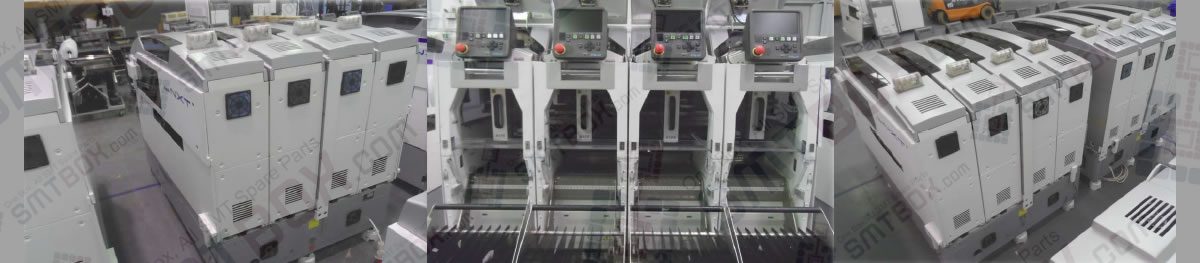
Transmission is used to send data between Fuji Flexa and the FUJI NXT machines. The most common use of Transmission is to send jobs to the modules on the FUJI NXT. Transmission for the FUJI NXT does not require outside communication programs such as an NTCC or SECS/GEM host server. From FUJI NXT control software… Continue reading about 5.1 Introduction of 5. Transmission on FUJI NXT SMT Equipment
1. Open the shape data (or part data if using non-relational mode) for the part data for which input is required in Fuji Flexa. 2. Refer to Vision Type Compatibility Table for Existing and NXT Machines and enter the new vision type in the NXT override [Vision Type] data field. 3. Refer to Vision Type… Continue reading about 4.7.3 Procedure for Entering overrides in part data of 4. Part Data Settings